
Project Status Bar
At the top of the app you’ll see the project status bar. The current chat name is shown - use the + icon to open a new chat. The left dot is the game engine plugin connection; the right dot is the GladeKit backend - these dots should both be green for the app to work.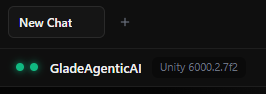
Chat Window
Type in the input area and send messages; the AI responds and acts according to the Agent Mode you have selected. The Changes section can be expanded - when the agent makes changes in Unity, it lists them and lets you Keep All or Undo All.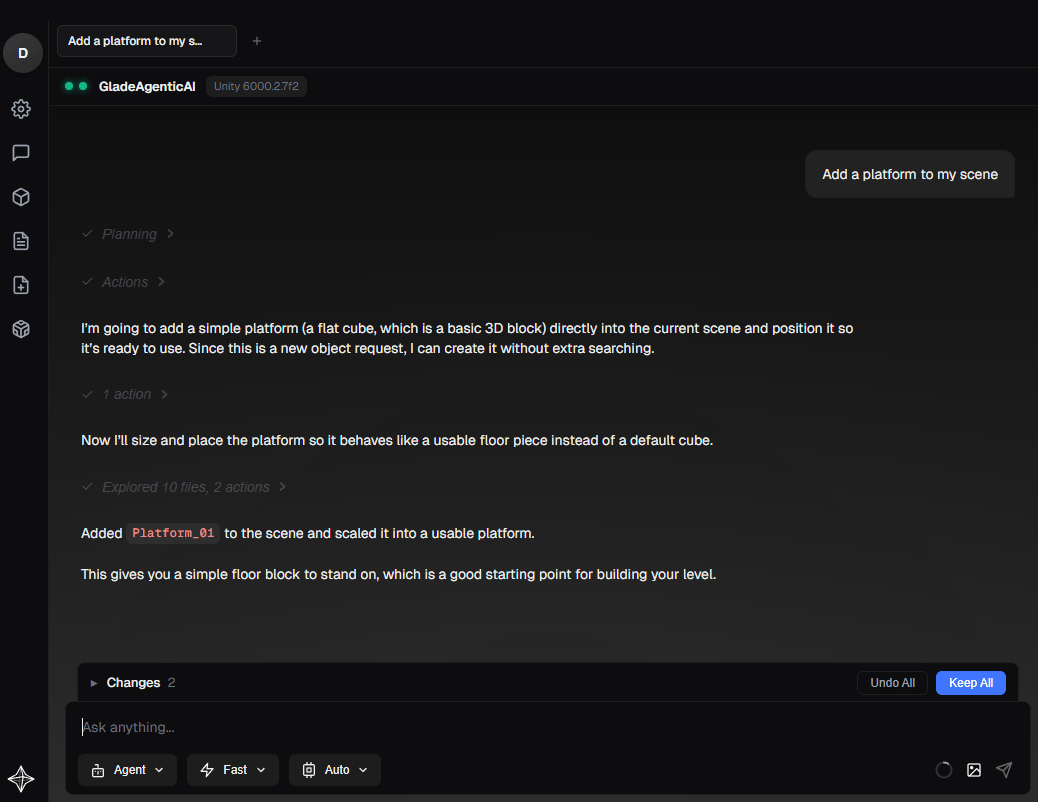
User Settings
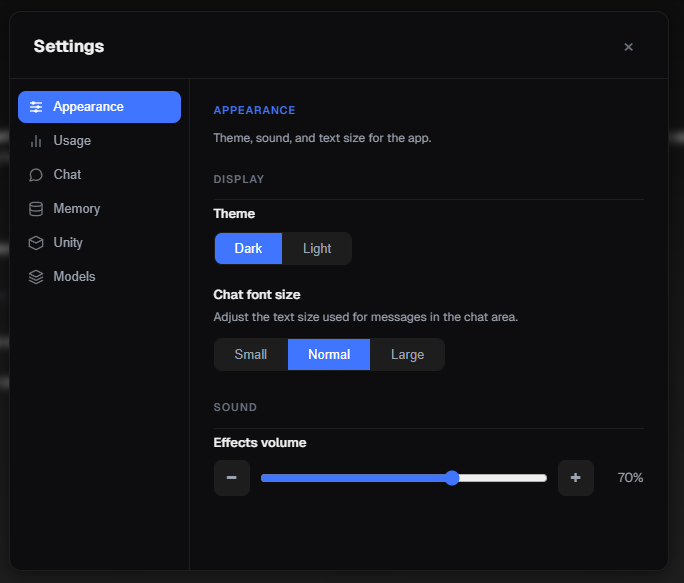
Open the settings window by pressing the Settings gear icon on the left hand side. Here, you can update the theme of the app and find various other useful settings, such as changing the models that are available to select from in the Models tab of the chat bar.