

The Changes panel
Above the chat input you’ll see a Changes bar with a number next to it. This is the Changes panel.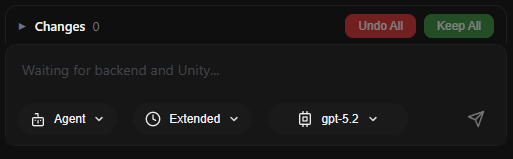
- What it shows: How many pending changes you have from the AI. Each time the AI edits files or GameObjects (scripts, materials, prefabs, etc.), those edits are grouped into “turns” and listed here.
- Expand/collapse: Click the Changes bar to expand or collapse it. When expanded, you see the list of pending turns (each AI response that made changes). When collapsed, you still see the total change count and the two action buttons.
- The number: The number is the total count of individual changes (e.g. files created or modified, GameObjects added or changed) across all pending turns.
Undo All and Keep All
Two buttons in the Changes panel control what happens to all pending changes in the current chat:- Undo All
- Keep All
- You can expand the panel to see which turns (which AI responses) have changes before choosing Undo All or Keep All.
- Buttons are disabled when there are no pending changes or while the AI is still generating.
- After you choose Undo All or Keep All, the backup data for those turns is cleaned up automatically.
Backup files and clearing them
To support Undo All, GladeKit saves backup files before the AI changes anything. Those backups are stored in a folder in your project:- Folder: .gladekit-backups (at your project root, next to Assets).
- What’s inside: For each “turn,” GladeKit stores copies of modified files and snapshots of modified GameObjects. That way it can restore them if you click Undo All.
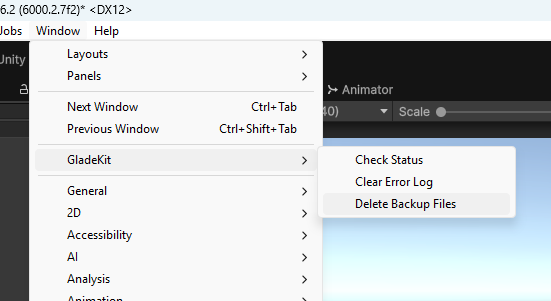
- From Unity: Window → GladeKit → Delete Backup Files
- Manually: Close Unity (and GladeKit if you like), then delete the .gladekit-backups folder in your project root in File Explorer (Windows) or Finder (Mac).